If your payment went through but you have not received your in-game item, follow these steps to resolve the issue.
Step 1: Retrieve Stuck Purchases
- Open the Menu from the game dashboard.
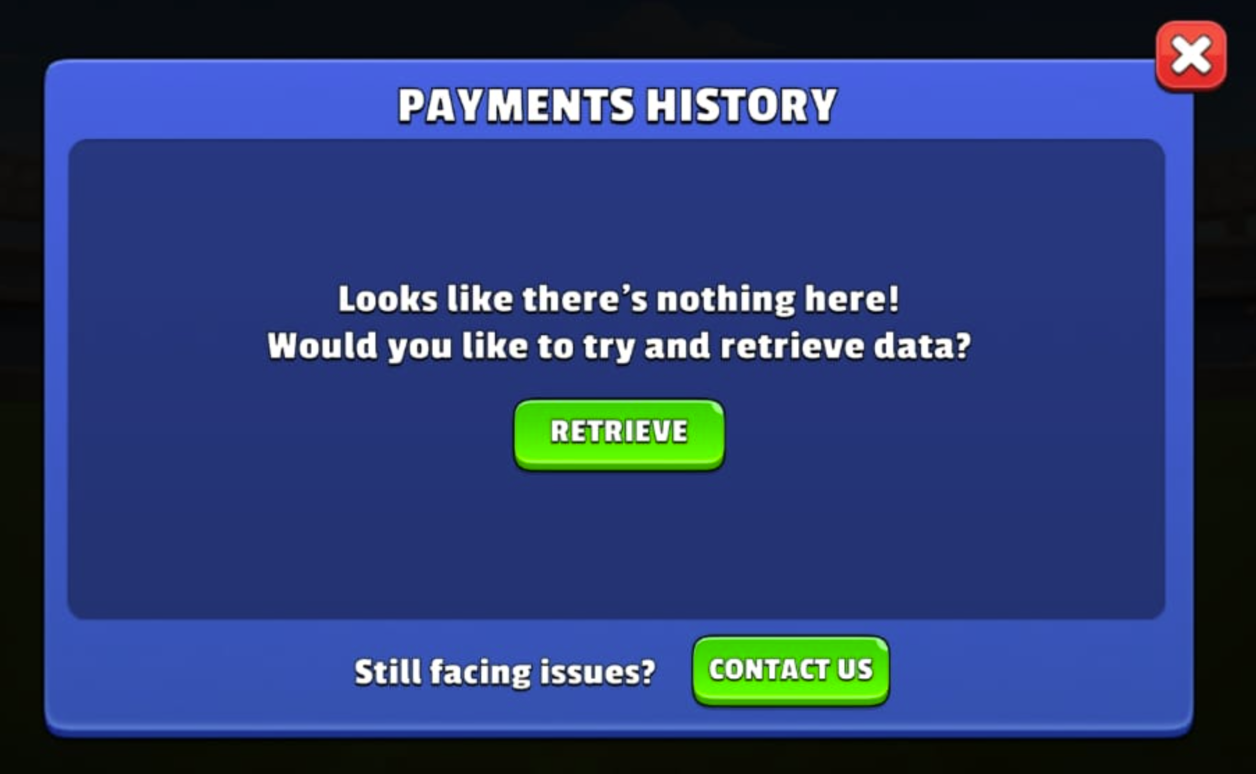
- Tap Facing Issues and select Payment.
- Tap Retrieve to fetch and retry any stuck purchases.
Step 2: Refresh Your Game Data
Depending on what you purchased, try the following quick fixes:
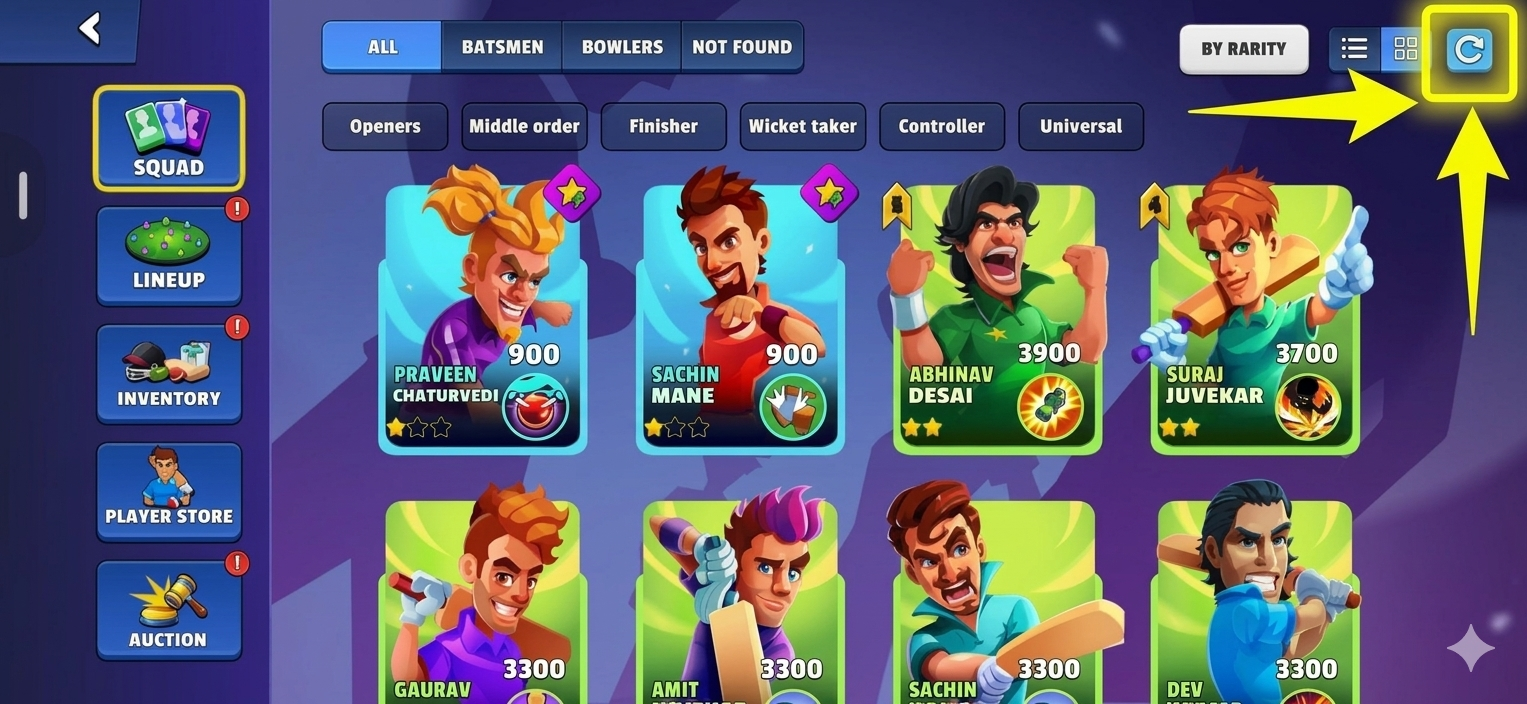
- For Player Purchases: Refresh your squad page. Go to the My Team page from the game dashboard and tap the Refresh button in the top-right corner to see your new player.
- For Currencies and Other Items: Restart the game completely. Relaunching the app forces it to update all in-game balances and items.
Step 3: Wait Up to 2 Hours
Sometimes high server traffic delays payment processing. If your item still does not appear, please wait up to 2 hours and periodically repeat the Retrieve process outlined in Step 1.
Step 4: Verify Your Payment Status (After 2 Hours)
If 2 hours have passed and your items are still missing, verify your transaction based on your payment method:
Android Users (Google Play Store)
- Open the Google Play Store and tap your profile icon.
- Go to Payments & subscriptions > Budget & history.
- Check if your confirmed purchase appears here.
If the order is missing: Your payment failed, and Google will automatically refund the amount to your account within 5-7 days as per their policies. Please reach out to Google Support if you need further assistance with the refund.
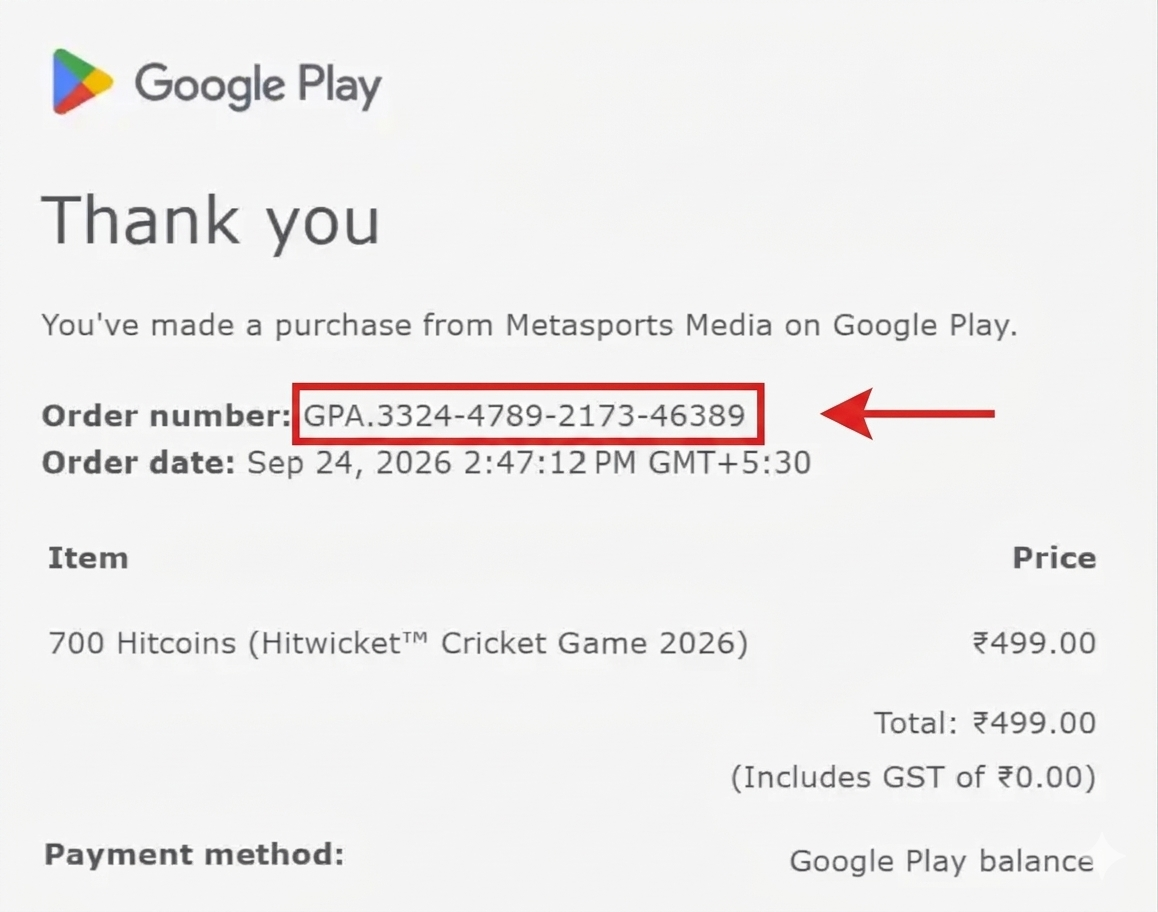
If the order is listed: Take a screenshot of your Google receipt which is sent to your email (see the example below) and proceed to Step 5.
Android Users (Razorpay / Pavilion)
- Ensure you have waited the full 2 hours, as these transactions can take extra time to clear.
- Check your bank statement or transaction SMS for the RRN (Retrieval Reference Number), then proceed to Step 5.
Apple Users (App Store)
Check your email inbox or your App Store purchase history for an Apple Tax Invoice.
- If you did not receive an invoice: The transaction did not complete, and Apple will refund your payment within 5-7 days, according to their standard guidelines.
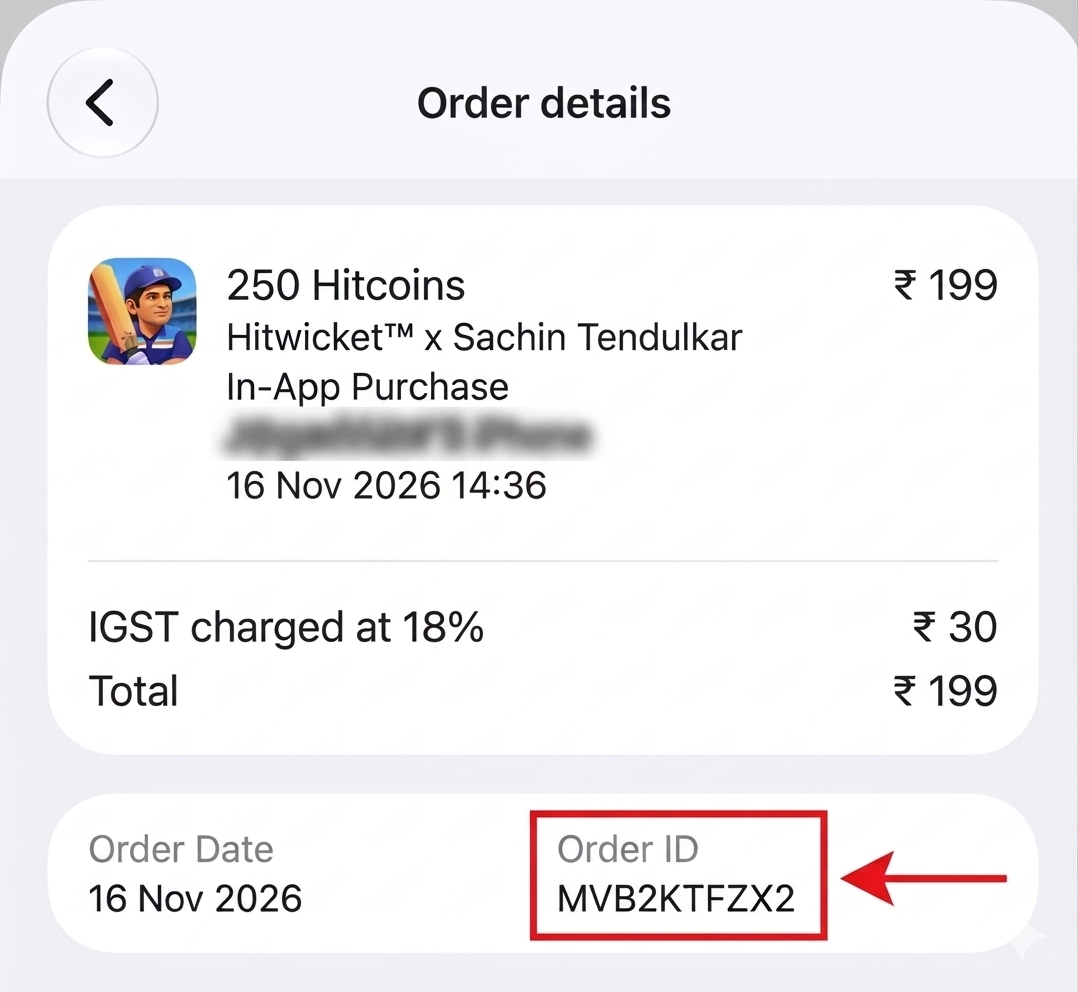
- If you have the invoice: Take a screenshot of the Apple Tax Invoice (see the example below) and proceed to Step 5.
Step 5: Contact Support
If you have verified your payment and the issue remains unresolved, our team is ready to help:
- Please mail us at purchases@hitwicket.com
- Share a screenshot of your Google Receipt, Apple Tax Invoice, or your Razorpay/Pavilion RRN number. (You can find these details in your email inbox or bank statement.)
Was this article helpful?
That’s Great!
Thank you for your feedback
Sorry! We couldn't be helpful
Thank you for your feedback
Feedback sent
We appreciate your effort and will try to fix the article